
Updating the theme is simple and necessary for compatibility and security. Follow these steps to update it.
Automatic updates
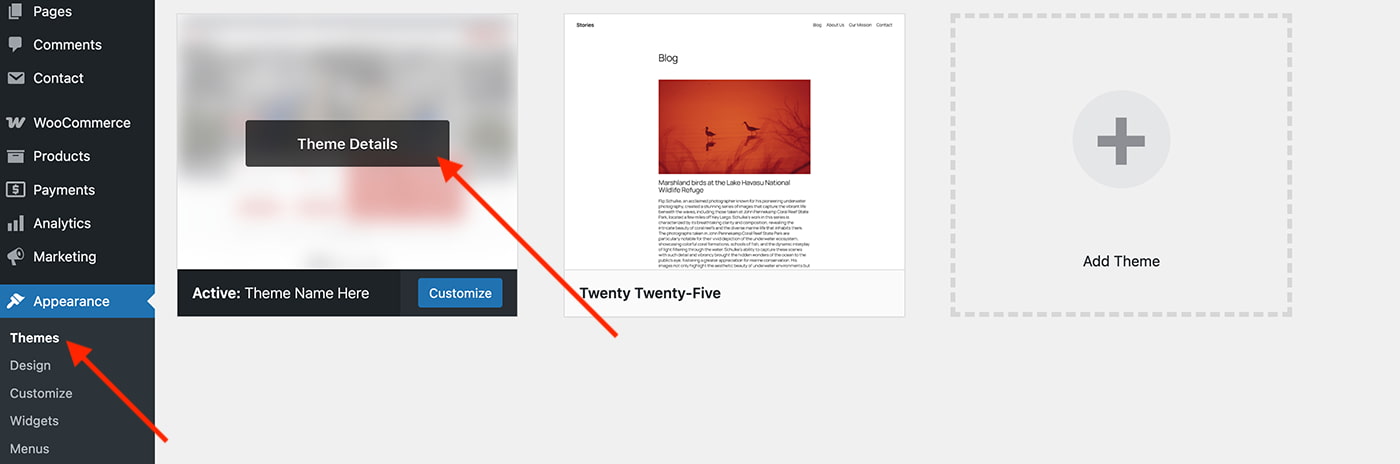
- Go to Appearance → Themes
- Click on the theme thumbnail
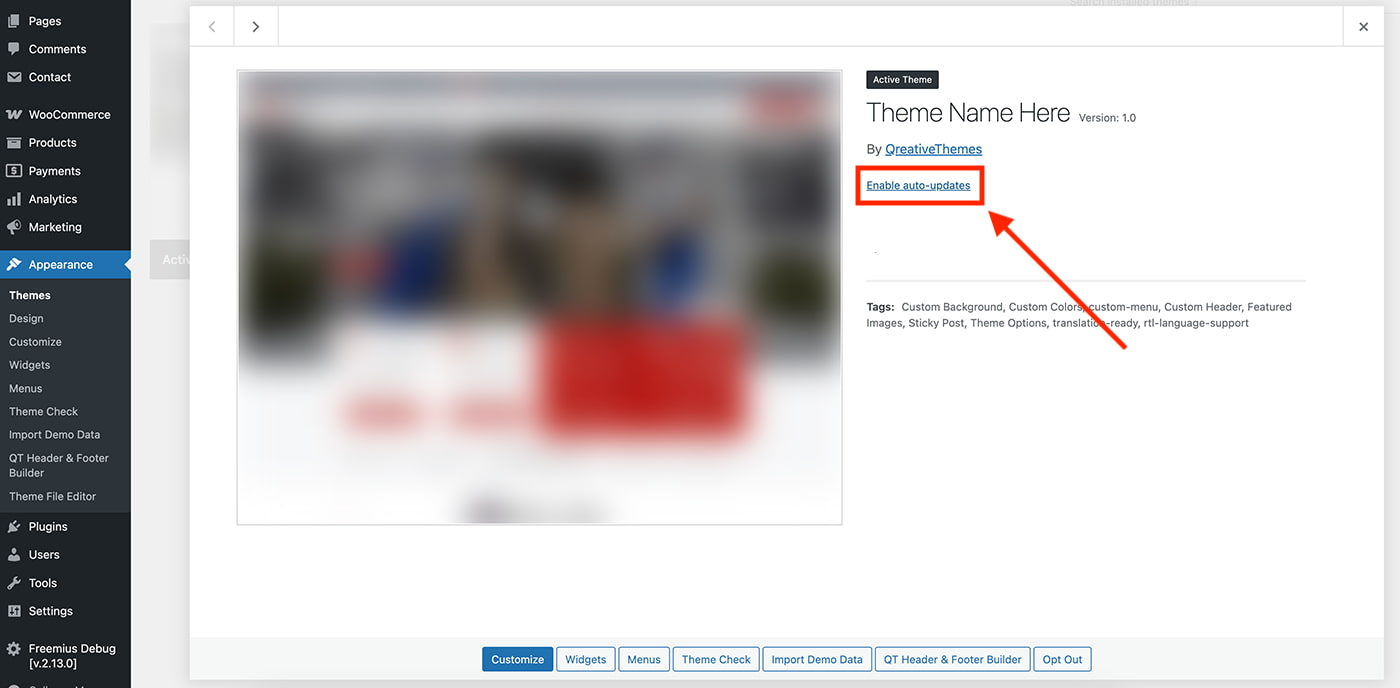
- Click on Enable auto-updates
Optional: Manual update
- Log in to your QreativeThemes account page
- Go to the Downloads tab and click Download
- In your WordPress dashboard, navigate to Appearance → Themes
- Click Add Theme at the top
- Click Upload Theme
- Select or drag the downloaded .zip file into the upload field
- Click Replace active with uploaded to overwrite the current version
- The theme is now updated
Worth mentioning
To receive theme updates, make sure your license is active. Without an active license, updates won’t be available.
Before updating, always create a backup of your site. If automatic updates are enabled, ensure automatic backups are also configured. A backup plugin can help you set this up and keep your data.
To avoid issues after updating, make sure to clear your cache, including caching plugins, browser cache, and server cache. This ensures your site loads the most recent changes correctly.